Step 4: Assign Roles
Learn how to define permissions and access levels for your team members within the system.
Sub-Step 1
Go back to business menu
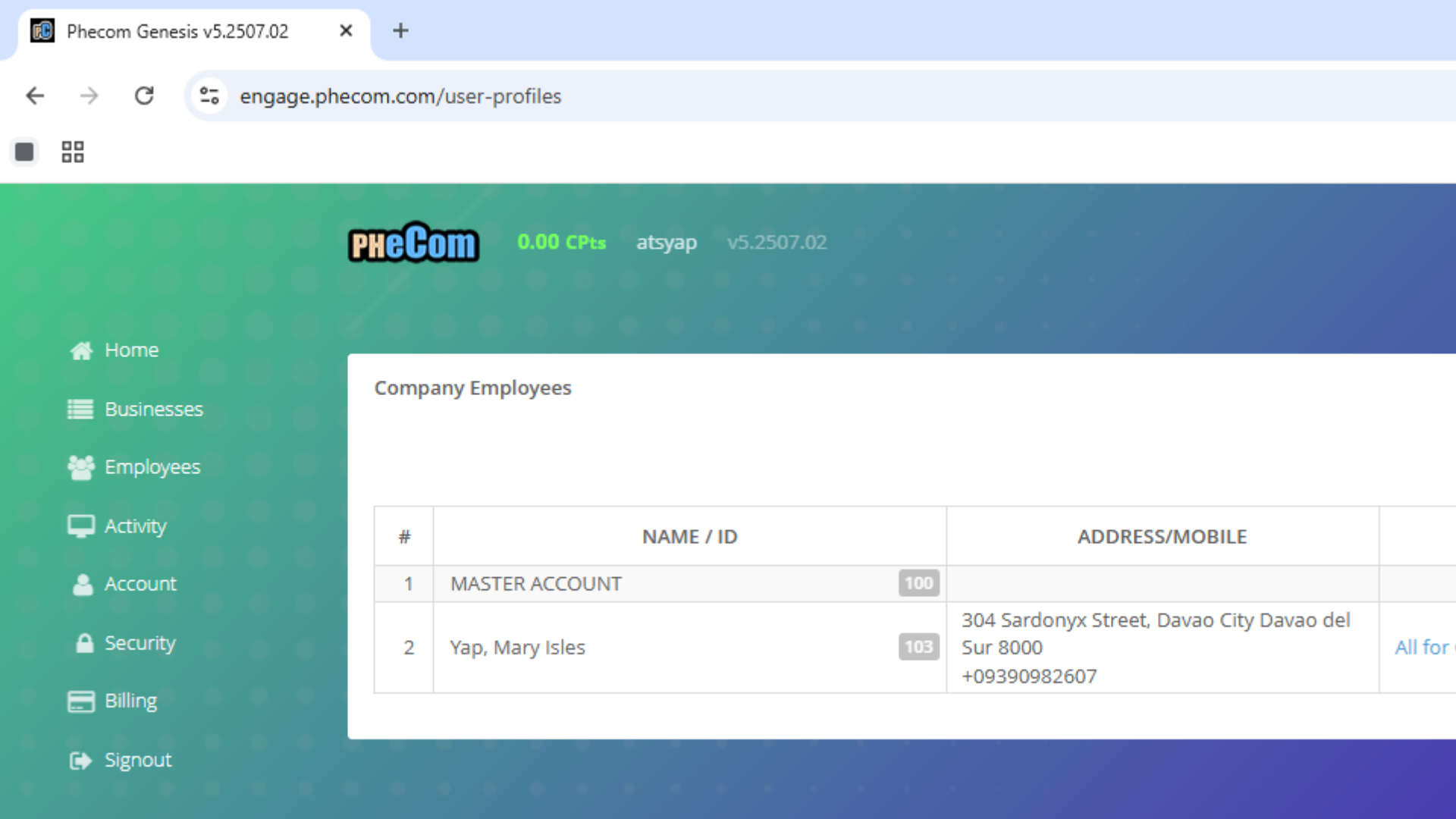
Click for Full View
Sub-Step 2
Designate Roles
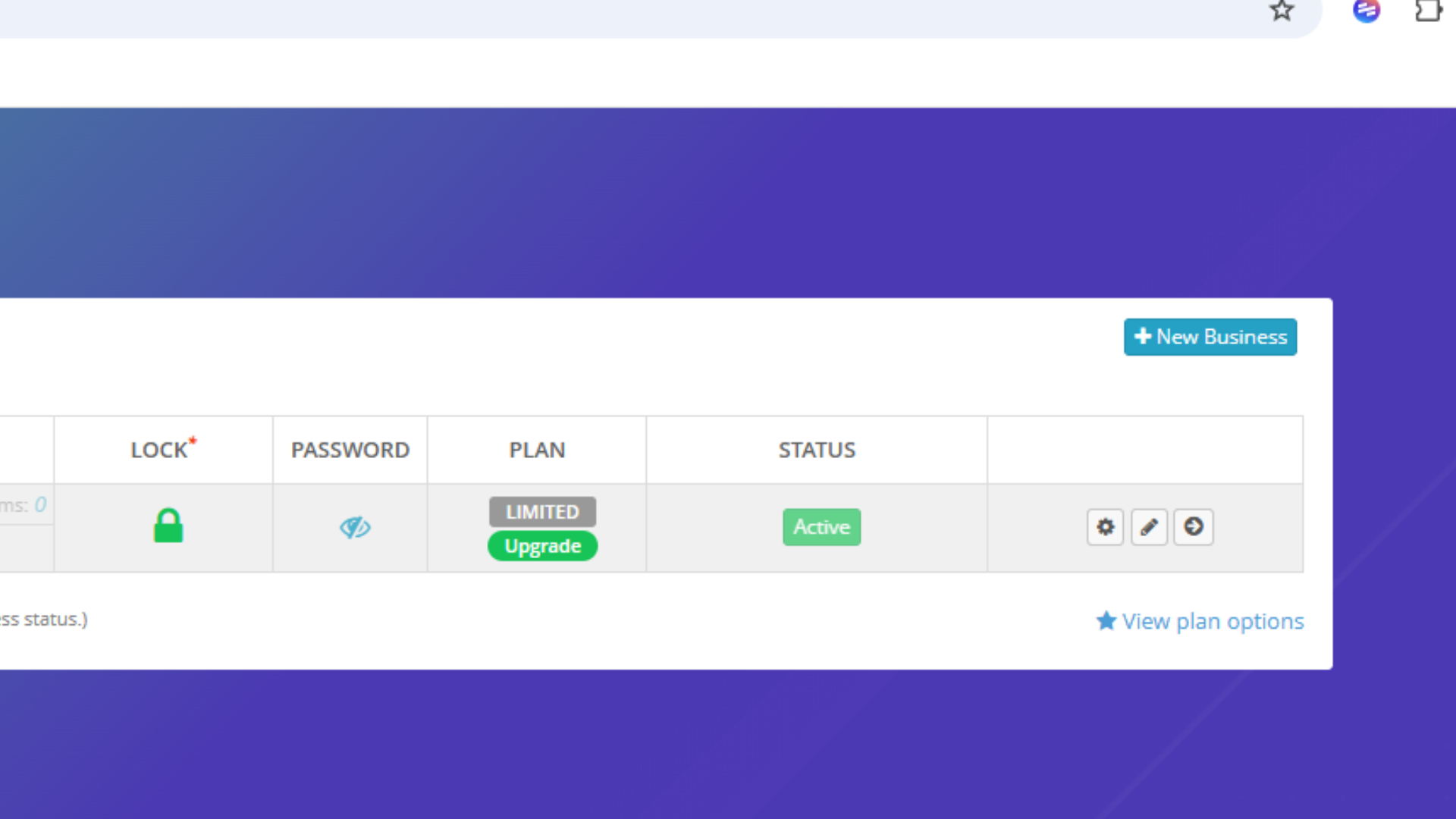
Click for Full View
Sub-Step 3
Designate Specific Roles
Click Authorizations Buttons Individually
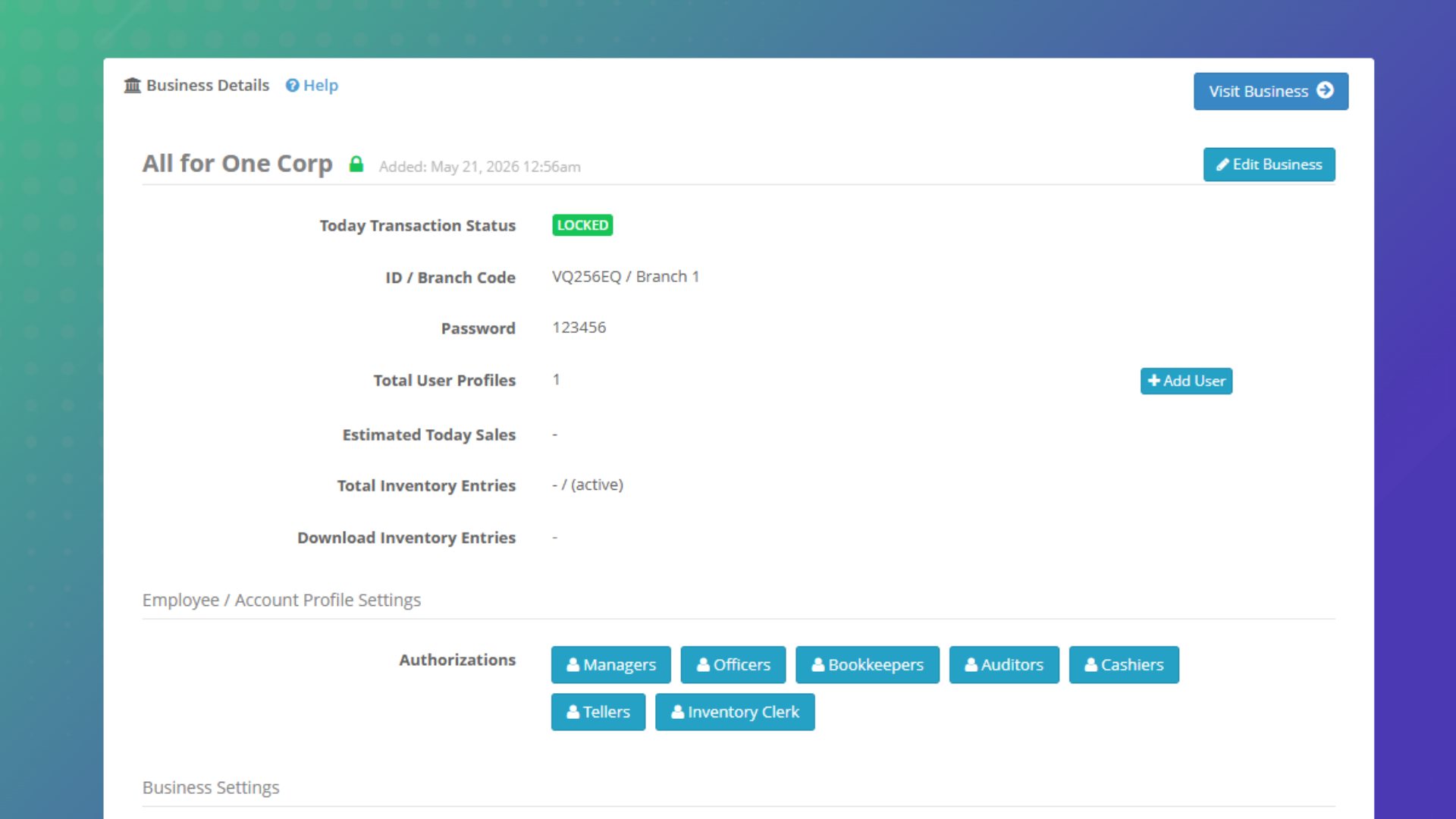
Click for Full View
Sub-Step 4
Finalize Permissions
Type Name and Clck Search. Set the Employee the role with the Green Button
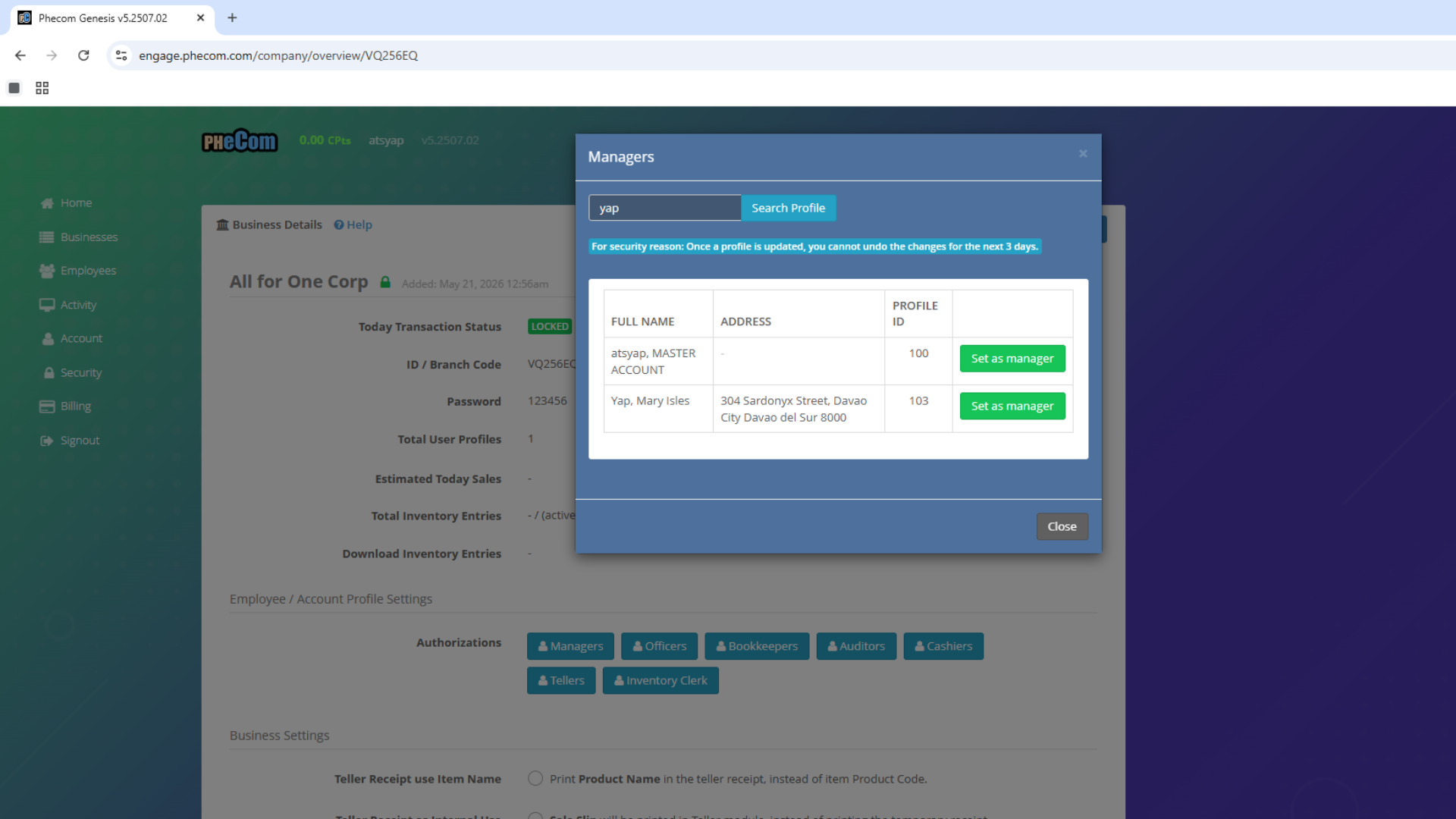
Click for Full View
Sub-Step 5
Multiple Role Assignments
You can assign employee multiple roles as long as the role assignment has proper control or does not have conflict of interest on the other roles assignments such as Accountant cannot be assigned as Cashier at the same time
Sub-Step 6
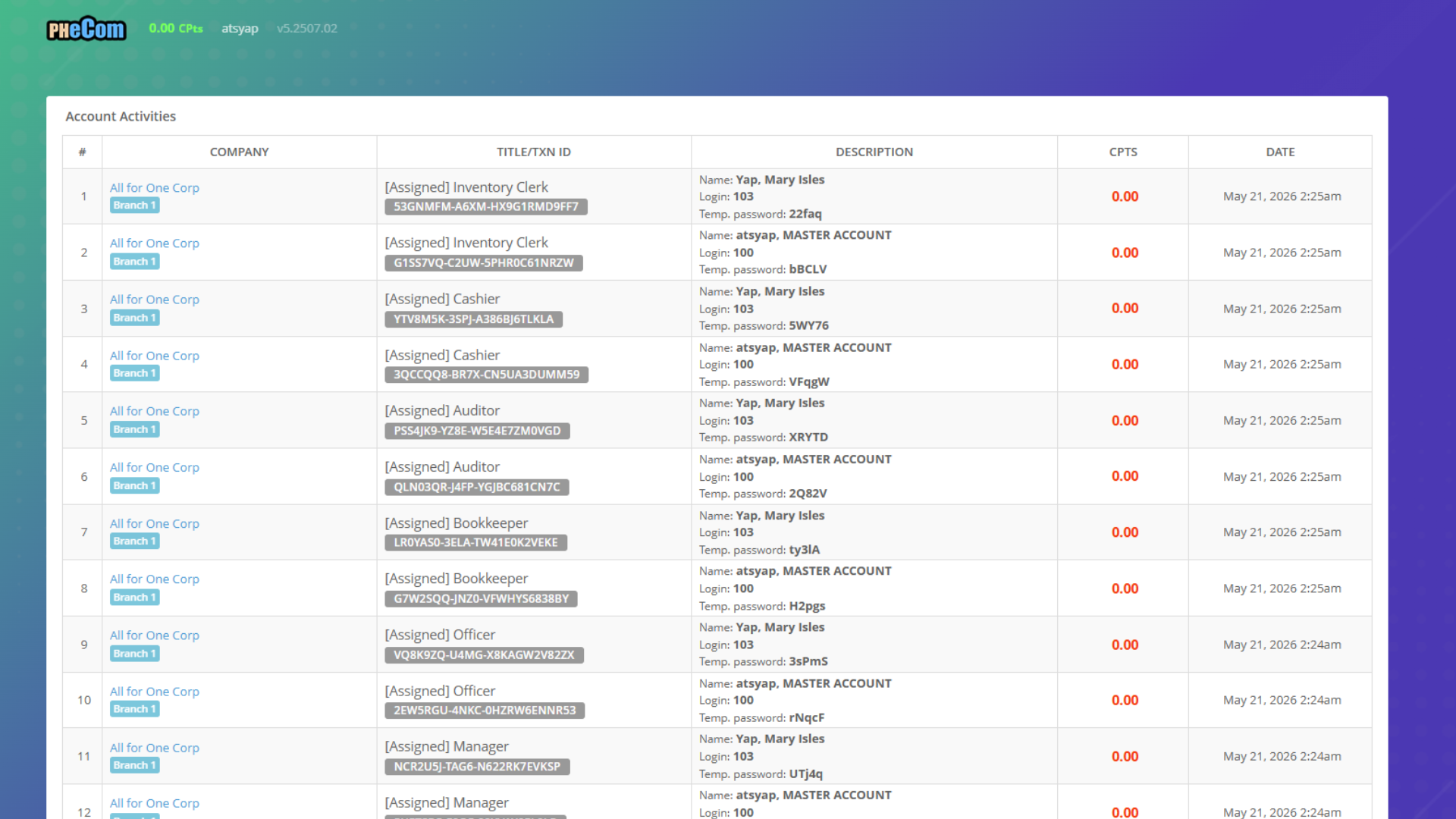
Distribute Access
Distribute Company Access (Company ID & Password), ID number and Temporary Password of the user and inform to change at User Profile. For multiple assigned roles, give the password of the last role assigned
Click for Full View
Sub-Step 7
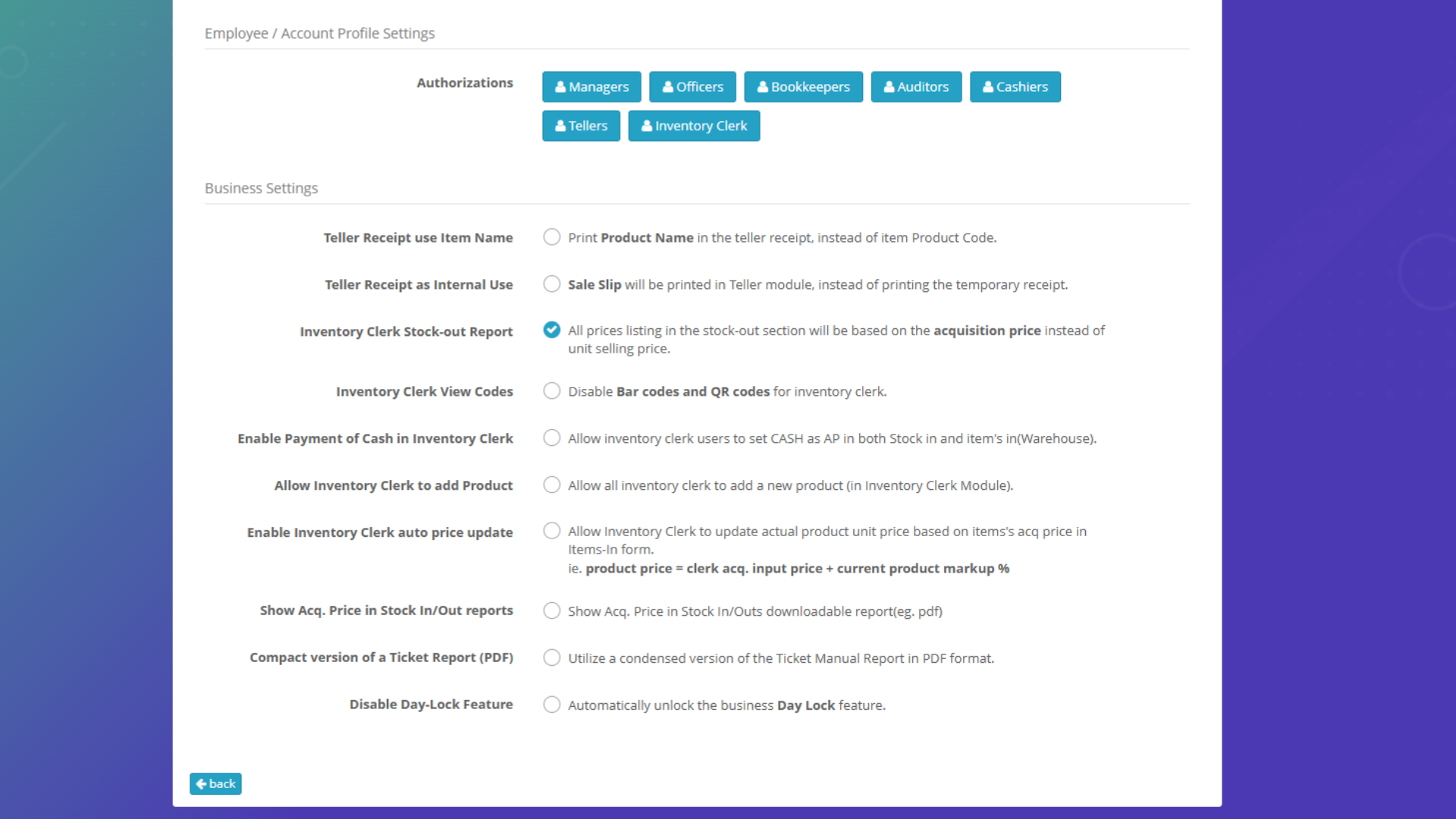
Additional System Settings
Configure more specific parameters and system-wide options to fine-tune your organization's setup.
Click for Full View
Security & Governance: Controller Access
Important Notice: Controller's Access is exclusively only for the Controller. Entrusting Controller Access gives authority to change company profile, add branches, activate/deactivate, move assignments, and add or remove roles for employees. Standard USERS should only be given their specific Company Access and their designated Role Access.